
TEACHER GUIDE
Blooket Host
Set up a classroom quiz and share the live lobby with your players.
Explore the dashboard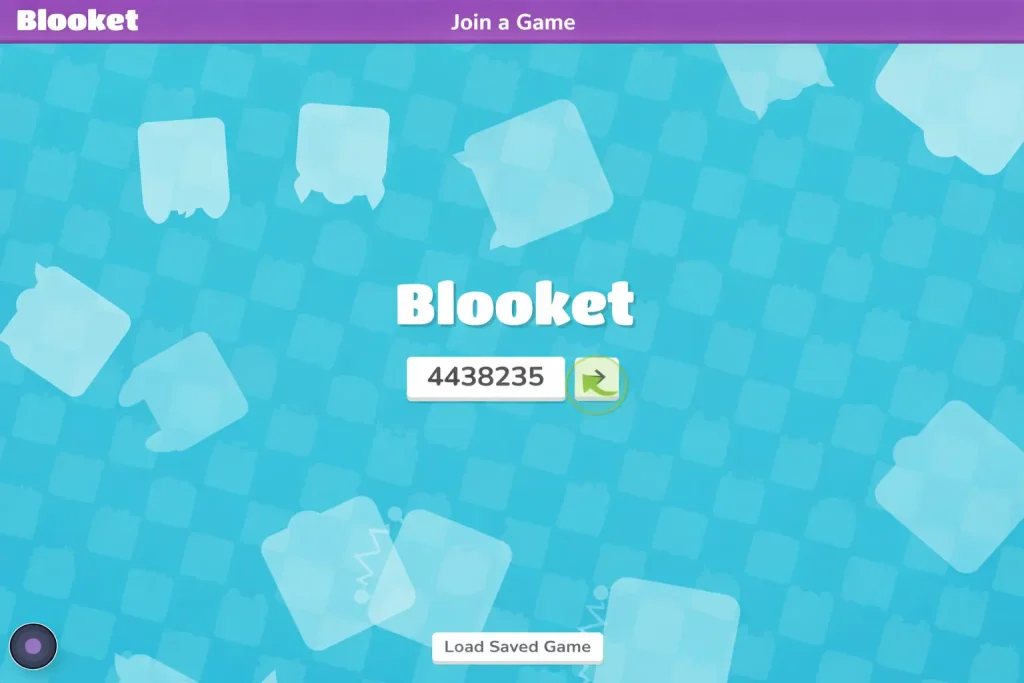
Blooket Host Complete Step-by-Step Guide to Hosting a Live Game
Blooket Host refers to the person who creates and controls a live game session on Blooket. When you host, you choose the question set, select the game mode, adjust settings, and share the game code or link with players. The host acts as the controller of the session, deciding when to start the game and managing the lobby. Hosting is commonly used in classrooms, online tutoring, and training sessions. Students or participants join from their own devices. The host’s main goal is to keep the game organized and aligned with learning objectives. Understanding the host dashboard is key to running smooth sessions.
How to Host a Blooket Game (Step-by-Step):
To start hosting, log in to your Blooket account and navigate to your dashboard. Choose a question set from “My Sets” or search under Discover to find a public one. Once you open a set, click the Host button to begin the setup process. Next, select a game mode that fits your teaching or activity style.
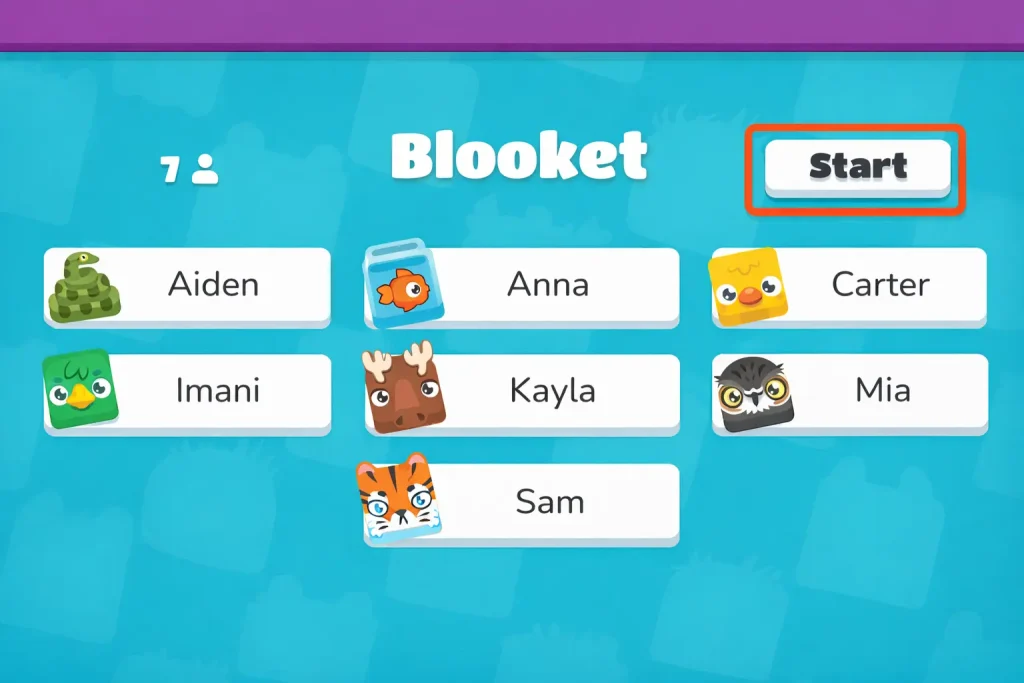
After choosing a mode, adjust the game settings such as time limits and player options. Click “Host Now” to generate a live game session. Finally, share the game code, QR code, or join link with participants and press Start when everyone is ready.
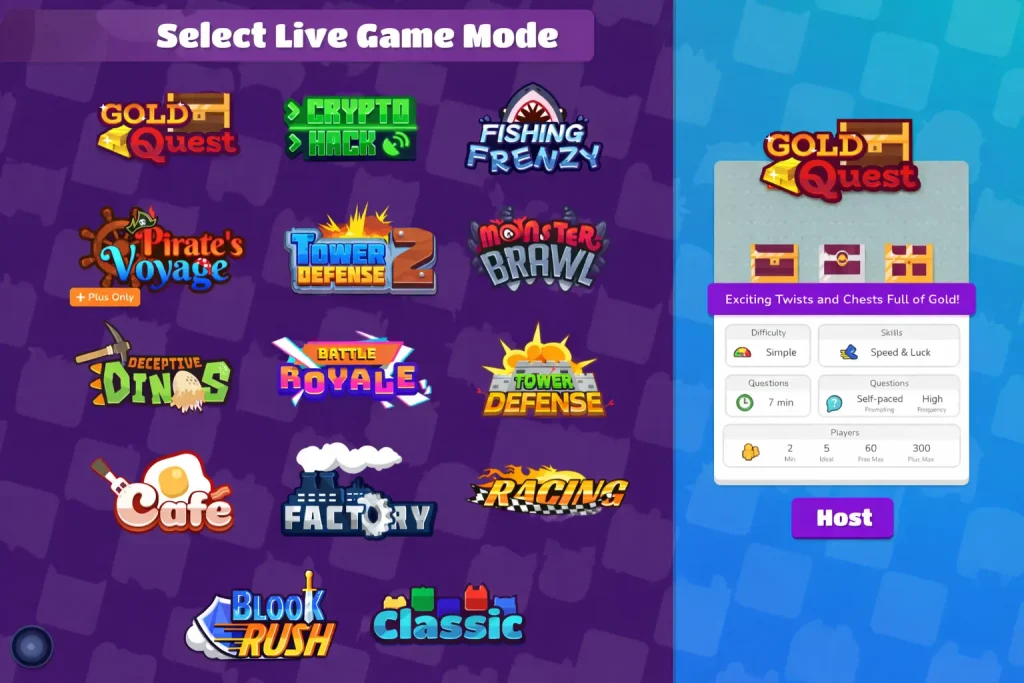
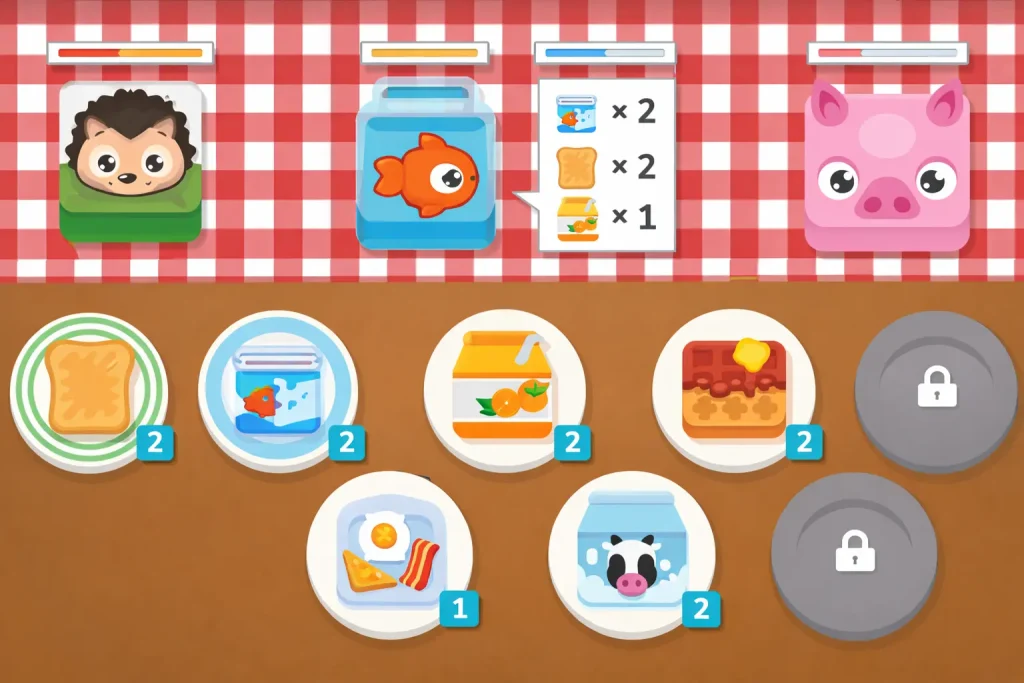
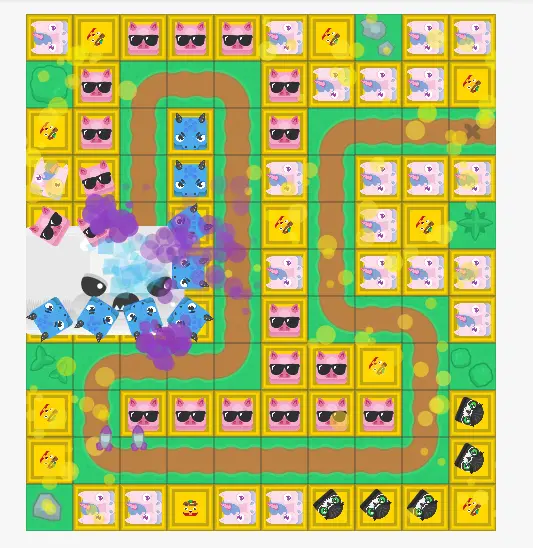
Game mode selection plays a big role in how your session feels and flows. Gold Quest is fast-paced and competitive, making it ideal for quick classroom reviews. Tower Defense is more strategy-based and works well for longer sessions. Cafe encourages planning and steady progress, while Factory focuses on resource management and pacing.
Different modes change the energy level of the class. If you want excitement, choose competitive modes. If you want deeper thinking, choose strategy-based ones. Always match the mode to your lesson objective.
Understanding Host Settings and Controls:
When hosting, the settings panel gives you control over how the game operates. You can enable or disable random names to manage classroom behavior. Some modes allow you to control late joining, which helps prevent disruptions after the game starts. You may also adjust time limits, question timers, and power-up options depending on the mode. Reviewing these settings before clicking “Host Now” prevents confusion later.
Good hosts test settings once before running a live class session. Small configuration changes can significantly affect student focus. Taking one minute to review settings leads to smoother gameplay.
How Players Join a Hosted Game:
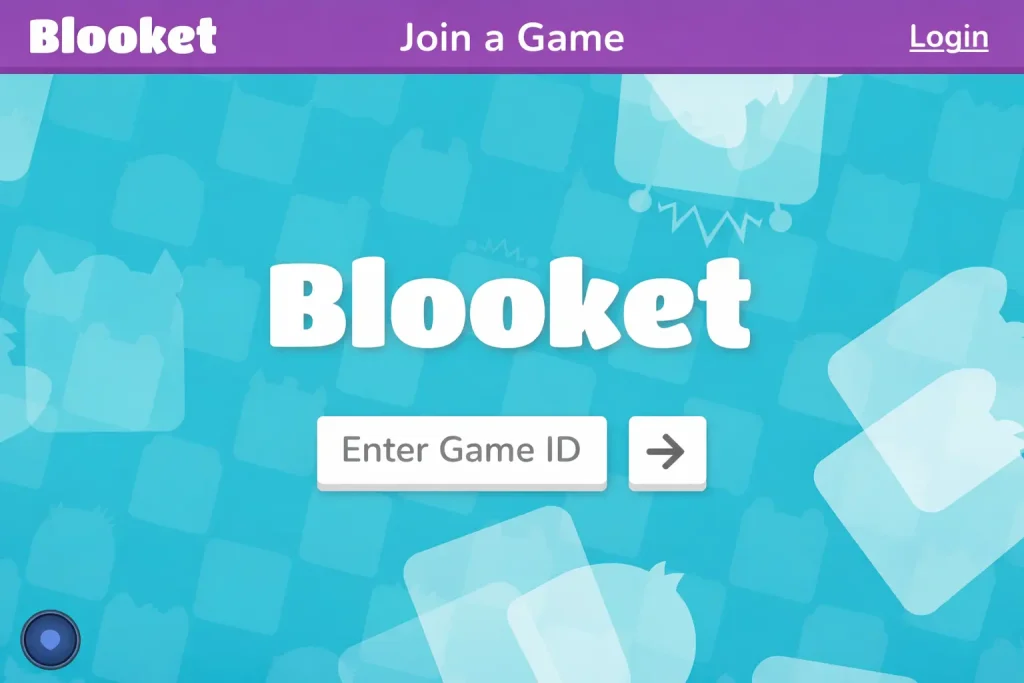
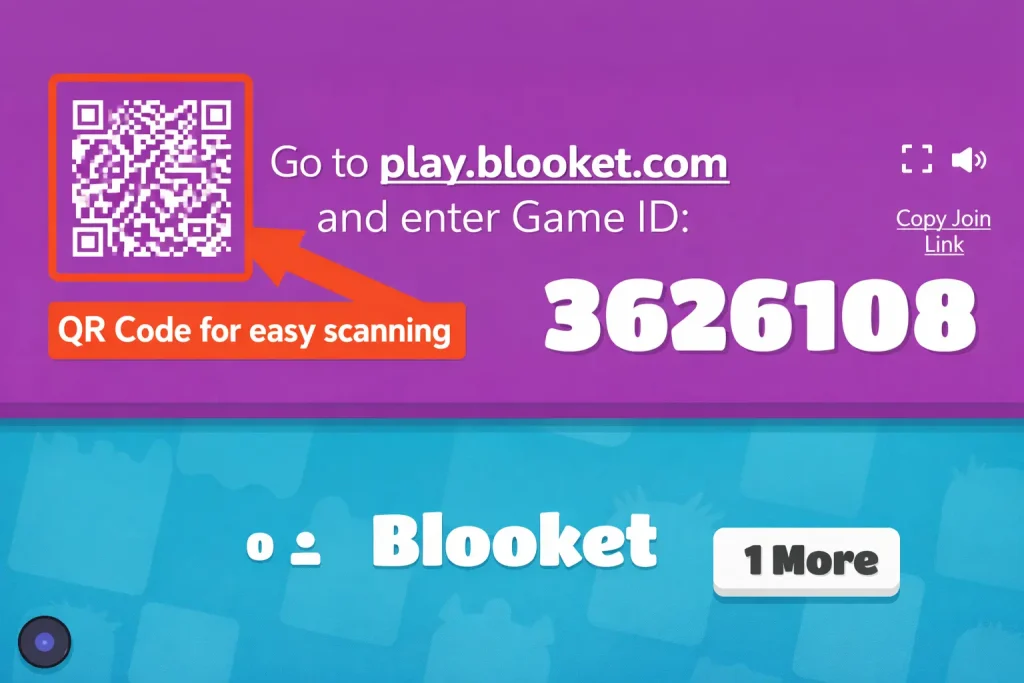
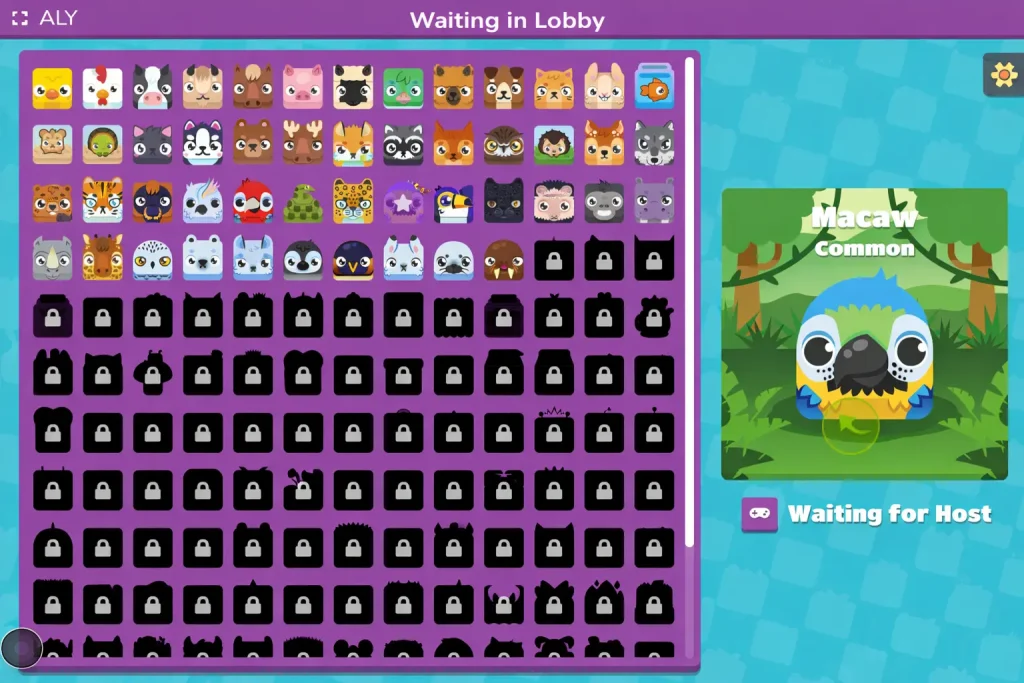
Players join through play.blooket.com, which is the official entry page for live games. They enter the game code provided by the host or scan the QR code displayed on the main screen. In virtual classes, you can share the direct join link in chat for faster access. After entering the code, players select a nickname and choose a Blook avatar. They then wait in the lobby until the host starts the session.
Student accounts are not always required to join, depending on the activity. Making sure students are on the correct website avoids common joining errors. Once everyone appears in the lobby list, you can confidently begin the game.
Tips to Be a Successful Blooket Host:
- Prepare your question set first: Review all questions before hosting to avoid errors, unclear wording, or wrong answers during the live session.
- Choose the right game mode for your goal: Fast modes for quick revision, strategy modes for deeper thinking, and team modes for collaboration.
- Keep the first session short: Start with 8–12 questions so students stay focused and you can test pacing.
- Use structured naming rules – If random names are off, require “First Name + Initial” to keep reports organized.
- Review settings before clicking “Host Now” – Double-check time limits, late joining, random names, and power-ups.
- Disable late joining once you start: This prevents interruptions and keeps competition fair.
- Display the QR code for faster joining: In physical classrooms, QR scanning reduces typing mistakes.
- Share the join link for online classes: It’s faster and avoids code-entry confusion.
- Run a practice round first: A short warm-up round helps students understand the rules before serious competition.
- Monitor the lobby before starting: Confirm all expected students have joined to avoid restarts.
- Pause if instructions are unclear: Take 30 seconds to explain rules again rather than letting confusion spread.
- Encourage healthy competition: Focus on learning outcomes, not just leaderboard rankings.
- Discuss answers after the game: Review incorrect questions to reinforce learning.
- Test your internet and device beforehand: A quick system check prevents technical disruptions.
- Save and reuse strong-performing sets: Track which question sets generate the best engagement and reuse them strategically.
Common Blooket Host Problems and Solutions:
- Students enter the wrong game code
Solution: Slowly re-read the code displayed on the screen and ask students to double-check each digit. Using the QR code or join link reduces typing mistakes. - Students are on the wrong website
Solution: Make sure they are joining from play.blooket.com, not the main dashboard page. Write the correct link clearly on the board or share it in chat. - Players can’t join after the game starts
Solution: Check if late joining is disabled in your host settings. If needed, end the session and restart with late joining enabled. - Inappropriate or distracting nicknames appear
Solution: Turn on random names before hosting, or require a structured naming format like “First Name + Initial.” - Lobby takes too long to fill
Solution: Display the QR code for faster joining in classrooms, or send the direct join link in online sessions. - Game feels chaotic or too noisy
Solution: Choose a calmer game mode, shorten the question set, or set clear behavior expectations before starting. - Internet connection issues during gameplay
Solution: Ask students to use stable Wi-Fi and close background apps. Test your own connection before hosting. - Students say the screen is stuck on waiting
Solution: Remind them the game won’t begin until the host presses “Start.” Confirm everyone is in the lobby first. - Scores seem unfair or confusing
Solution: Explain how the selected game mode calculates points before starting. Different modes reward strategy differently. - Host accidentally closes the tab
Solution: Reopen the session immediately if possible. If disconnected completely, start a new game and share the updated code.
Why Blooket Hosting Is Popular in Classrooms:
Blooket hosting combines competition with learning reinforcement. Teachers appreciate that students stay engaged while answering curriculum-based questions. The host dashboard allows full control without needing advanced technical skills. Because students join using simple codes, setup takes only a few minutes.
The platform works across phones, tablets, and laptops, making it flexible for any environment. Real-time participation keeps energy levels high. For many educators, Blooket Host has become a regular part of weekly review sessions.
Conclusion:
Becoming an effective Blooket Host means understanding the hosting process, choosing the right mode, and managing settings wisely. With proper preparation, hosting takes only minutes but creates high engagement. Whether you’re running a classroom review, tutoring session, or training activity, Blooket provides a simple way to combine learning with interactive gameplay. Master the hosting steps, test your settings, and guide your players confidently. With experience, you’ll be able to host smooth, structured, and impactful sessions every time.
FAQS:
1. How do I host a game on Blooket?
To host a game on Blooket, log into your account and select a question set from “My Sets” or Discover. Click the Host button on the set page and choose your preferred game mode. Adjust the game settings such as time limits and player options. Click “Host Now” to generate a live session. A game code, QR code, and join link will appear on the screen. Share one of these options with your players and press Start when everyone is in the lobby.
2. Where do students enter the Blooket host code?
Students enter the host code at play.blooket.com, which is the official joining page for live games. After typing the code, they choose a nickname and select a Blook avatar. They will then wait in the lobby until the host starts the game. Make sure students are on the correct website to avoid joining errors. Sharing a QR code can also reduce typing mistakes. For online classes, sending the direct join link is often faster.
3. Do students need an account to join a hosted Blooket game?
No, students do not always need an account to join a hosted game. They can usually enter the game code and play as a guest. However, logging into an account may allow them to earn points and use saved Blooks. Account requirements can vary depending on the session setup. For classroom convenience, many teachers allow guest access. Always check your hosting settings before starting.
4. Can I host a Blooket game for remote or online classes?
Yes, Blooket hosting works well for remote learning environments. After clicking Host, you can copy and share the join link in Zoom, Google Meet, or a learning management system. Students simply click the link and enter the lobby. This method eliminates manual code entry. Hosting online follows the same setup steps as in-person sessions. Just ensure all participants have stable internet access.
5. How many players can join a Blooket host session?
The number of players depends on the game mode and your subscription plan. Free accounts support standard classroom sizes, while paid plans may allow more participants. Very large groups should test the mode beforehand to ensure performance stability. Some game modes may have recommended player limits for the best experience. Always monitor the lobby to confirm all participants joined successfully. Testing with a small group first can help prevent technical issues.
6. Can I reuse the same question set when hosting again?
Yes, you can reuse any saved question set multiple times. You can even host the same set in different game modes for variety. This is helpful for revision sessions or repeated practice. Some teachers run the same set twice once as practice and once as competition. Reusing sets saves preparation time. You can also edit and improve your set between sessions.
What should I test before sharing the game code?
Open the lobby, confirm the intended set and mode, and make sure students can see the current Game ID or QR code.