How to Choose a Blooket Mode for a Classroom Review
CLASSROOM PLANNING
How to Choose a Blooket Mode for a Classroom Review
Choose the learning goal first. For checking understanding, look for a mode and settings that give students time to read each question. For a short warm-up, choose a set with fewer questions.
Open the related guide ↗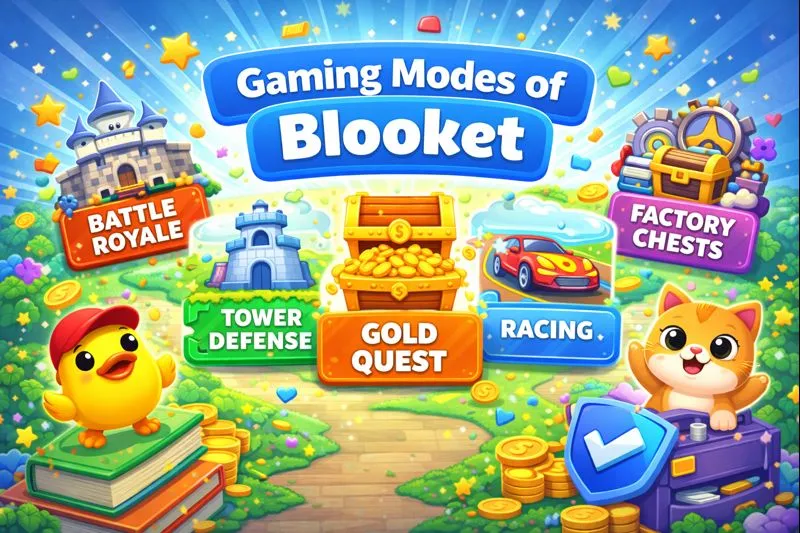
STEP-BY-STEP GUIDE
Match game mode to the lesson
- Start with one goal, such as checking recall, practising vocabulary, or spotting misconceptions. Choose a mode only after deciding what evidence you want from the game.
- Preview the mode with a short sample set. Watch how quickly questions appear and whether students have enough time to read and discuss the answers.
- Plan the debrief before you launch. Pick one or two items to revisit after the round and give students time to explain their reasoning.
Worked example
For a five-minute vocabulary warm-up, use eight short questions. For a misconception check, use four carefully written questions and reserve time afterward to compare answers.
Troubleshooting tip
If the first test feels too fast, shorten the set or choose a mode whose pacing works better for your class.
Before you finish
Preview the game before class. Try a few questions and check how the mode handles answers, pacing, and interruptions.
If something goes wrong
If the class gets noisy, pause your explanation between rounds and set a clear signal for students to stop and listen.
Frequently Asked Questions
How can I check a mode before class?
If the class gets noisy, pause your explanation between rounds and set a clear signal for students to stop and listen.
Blooket Game Modes for Classroom Review checklist
For Blooket game modes for classroom review, start with your lesson goal and use a short test round to check pacing. See How to Use Blooket as an Exit Ticket for a related walkthrough.