
ACCOUNT TOOLS
Blooket Dashboard
Find your question sets and learn where to start from the dashboard.
Hosting guide
Blooket Dashboard Complete In-Depth Guide to Hosting, Sets, Reports & Settings
If you’re searching for Blooket Dashboard, you likely want to understand how to host a game, manage question sets, assign homework, or check reports without wasting time clicking around. The dashboard is the central control panel inside Blooket where everything happens after login. Instead of guessing where buttons are, this guide walks through each section clearly and practically.
Whether you’re a teacher running live sessions or assigning practice work, understanding the dashboard structure helps you save time, stay organized, and use Blooket more effectively.
1) Overview of the Blooket Dashboard
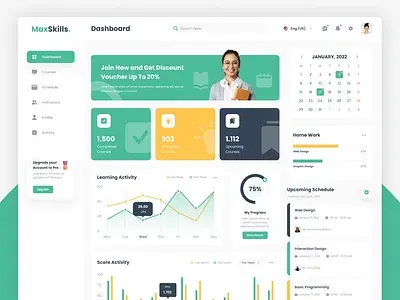
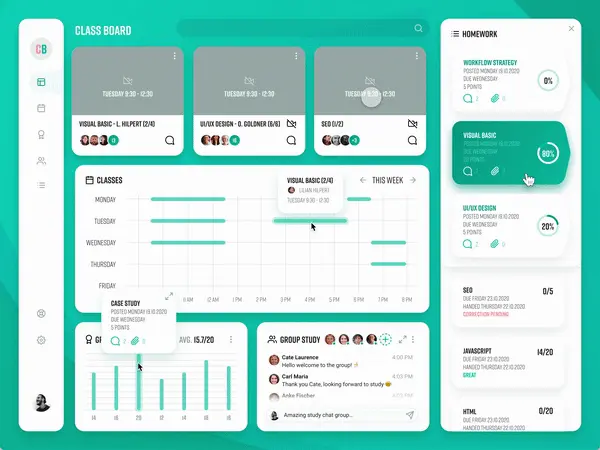
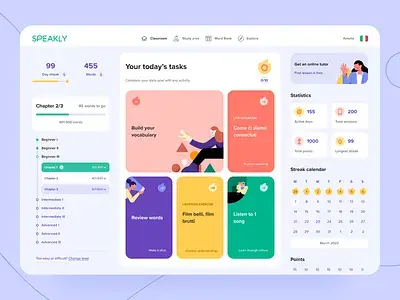
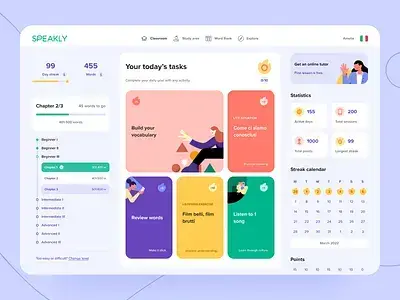
The Blooket Dashboard is the first page you land on after logging in. It acts as your main workspace where you can access hosting tools, assignments, reports, and question sets. Everything is structured around managing games and tracking performance. If something feels confusing inside Blooket, it usually becomes clearer once you understand how the dashboard is organized.
The dashboard layout may look slightly different depending on your device or account type, but the core tools remain the same. Teachers typically see more management features, while student dashboards are simplified. Learning how to navigate this space efficiently makes daily usage much smoother.
Key functions you’ll find:
- Host live games
- Assign homework
- Access saved question sets
- View history and reports
- Adjust account settings

2) Host: Starting a Live Game
Hosting is one of the most used features in the Blooket Dashboard. When you click “Host,” you begin a live classroom game session where students join using a game code. This feature is ideal for review sessions, classroom competitions, and active learning environments. The dashboard gives you control over game settings before and during the session.
Before starting, you select a question set and choose a game mode. After configuring settings like time limits or random names, you generate a game code. During the session, you can monitor participation and end the game when needed.
What you control in Hosting:
- Question set selection
- Game mode selection
- Time limits and settings
- Late join permissions
- Randomized names
- Game start and end controls
3) Assign: Creating Homework or Self-Paced Games
The Assign feature allows students to complete games independently instead of live. This is helpful for homework, remote learning, or extra practice outside class time. When you assign a game, you set a due date and share the assignment link or code with students.
Assignments are ideal when you want students to work at their own pace. It also reduces classroom noise while still keeping engagement high. Once completed, you can review participation and performance through your dashboard history section.
What Assign allows you to set:
- Due date and time window
- Game mode (assignment-supported modes)
- Question order settings
- Assignment link/code sharing
- Independent completion tracking
4) My Sets: Managing Your Question Library
“My Sets” is where all your created and saved question sets are stored. This section becomes increasingly important the more you use Blooket. Instead of recreating content each week, you can duplicate, edit, and reuse sets efficiently.
Organizing your sets properly saves a lot of time during lesson planning. A clear naming structure helps you quickly identify which set belongs to which subject or grade. You can also edit questions to improve clarity or difficulty over time.
Inside My Sets you can:
- Create new sets
- Edit existing questions
- Duplicate sets for variations
- Delete outdated sets
- Reuse sets for multiple classes
- Organize by subject or topic
5) Discover: Finding Public Question Sets
The Discover section lets you search for public question sets created by other users. This feature is helpful when you need content quickly and don’t want to build a set from scratch. However, not all public sets are high quality, so reviewing them carefully is important.
Before using a discovered set in class, skim through the questions to ensure accuracy and clarity. Many teachers duplicate public sets and edit them to match their standards. This balances speed and quality control.
Best practices when using Discover:
- Check play count/popularity
- Review sample questions
- Duplicate before editing
- Adjust difficulty level
- Remove unclear or incorrect questions
6) History & Reports: Tracking Performance
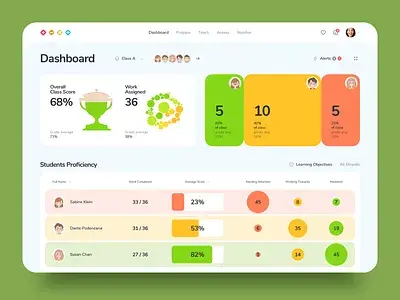
The History or Reports section is where you analyze past games and assignments. This part of the Blooket Dashboard is often underused but extremely valuable. Instead of only looking at winners, you can analyze which questions were missed most frequently.
Using report data helps you adjust teaching strategies and revisit weak concepts. You can use performance insights to create targeted review sets. Over time, this turns Blooket from just a fun activity into a structured learning tool.
Reports typically show:
- Hosted game history
- Assignment completion
- Accuracy percentages
- Question-level breakdown
- Participation records
- Player performance comparisons
7) Settings & Profile Management
The Settings section allows you to manage your account details and preferences. While not used daily, it becomes important when troubleshooting issues or updating personal information. If features appear missing, checking your account settings is a smart first step.
Sometimes dashboard differences are caused by account type, browser issues, or school network restrictions. Ensuring you are logged into the correct account solves many common problems.
Settings usually include:
- Username/profile editing
- Password management
- Account preferences
- Privacy controls
- Linked accounts (if applicable)
- Login method adjustments
8) Common Dashboard Problems & Fixes
Sometimes users experience loading errors or missing buttons on the Blooket Dashboard. Most issues are related to browser cache, extensions, or school network filters. Simple troubleshooting steps usually resolve the problem quickly.
If something looks different than usual, confirm you are logged into the correct account and using a supported browser. Trying incognito mode often fixes loading glitches.
Quick troubleshooting steps:
- Refresh the page
- Use incognito/private window
- Clear browser cache
- Disable browser extensions
- Try another browser
- Switch networks if restricted
Final Thoughts
The Blooket Dashboard is more than just a homepage it is the command center for hosting games, assigning work, managing content, and reviewing performance. Once you understand each section and its purpose, your workflow becomes faster and more organized.
By using Hosting for engagement, Assign for independent practice, My Sets for organization, Discover for speed, and Reports for analysis, you can turn Blooket into both an interactive and structured learning platform.
Frequently Asked Questions (FAQs):
1) How do I access the Blooket Dashboard?
To access the Blooket Dashboard, log in to your account and you’ll automatically land on the home/dashboard page. If it doesn’t appear, click the Blooket logo or the “Home” option in the top menu.
2) How do I host a game from the Blooket Dashboard?
From the dashboard, click Host, select a question set, choose a game mode, adjust settings, and start the game. A game code will be generated for students to join.
3) Where can I see my game reports and student results?
You can view past games and assignments in the History or Reports section of the dashboard. This area shows performance data, accuracy, and participation details.
4) What is the difference between Host and Assign in the Blooket Dashboard?
Host runs a live classroom game in real time, while Assign allows students to complete the game independently within a set time window.
5) Why is my Blooket Dashboard not loading properly?
If your dashboard is not loading, try refreshing the page, clearing your browser cache, using incognito mode, disabling extensions, or switching browsers. Network restrictions can also affect loading.
Frequently Asked Questions
Where should I start if I can’t find a question set?
Check that you are signed in to the account where you created the set. Then look in your own sets or use Discover to find public sets.